
Obtaining a Medicare provider number is an important step for healthcare professionals who need to provide Medicare-billed services at a new practice location. This guide walks through the PRODA process, with screenshots and practical details for a Doccy provider-number application.
Step 1: Access Provider Number Section
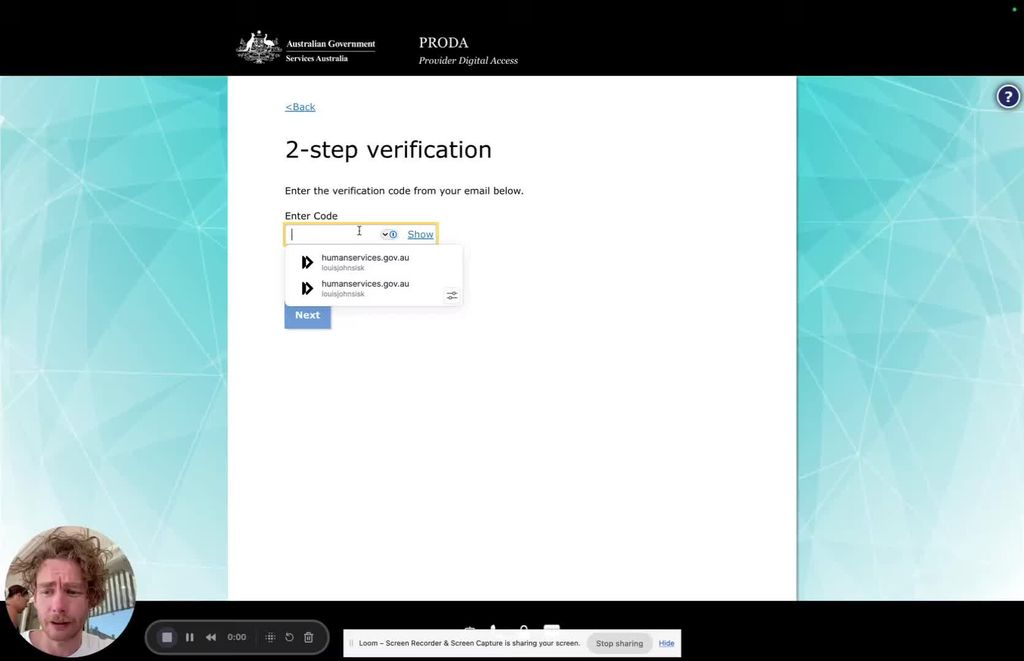
PRODA Login Page - First step to accessing your Medicare provider number
- Go to the PRODA website.
- Navigate to 'My Details'.
- Click on 'My Provider Numbers'.
Step 2: Create a New Provider Location
- Select 'Create a New Provider Location'.
- Confirm your eligibility to proceed.
Step 3: Choose the Correct Options
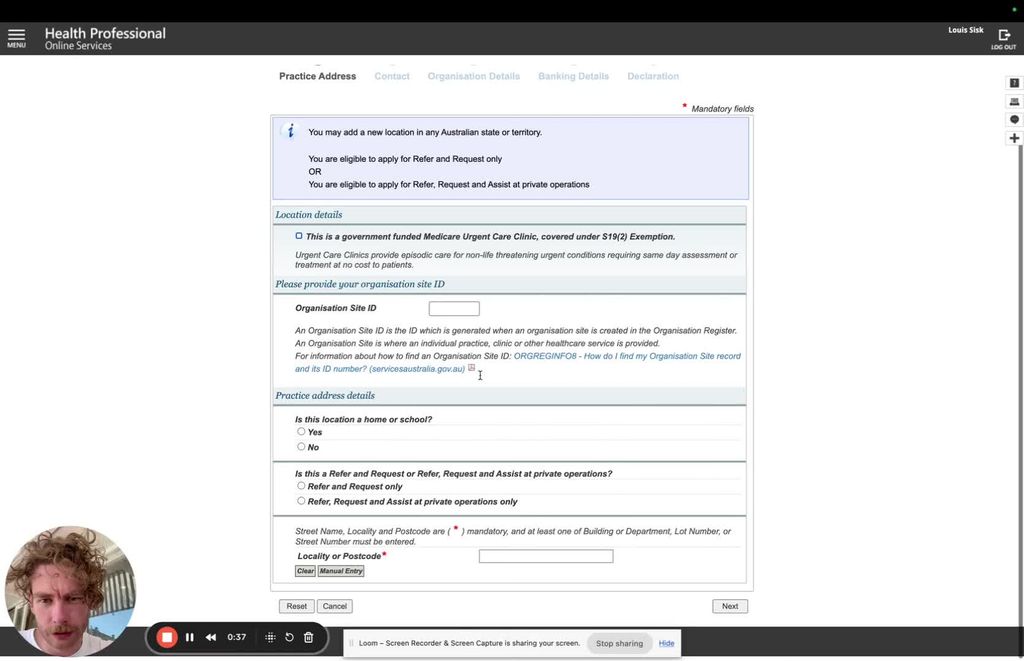
Selecting the appropriate provider location type - avoid Medicare Urgent Care Centre option
- Do not select 'Medicare Urgent Care Centre'.
- Choose the correct type (not home or school).
Step 4: Enter the practice postcode
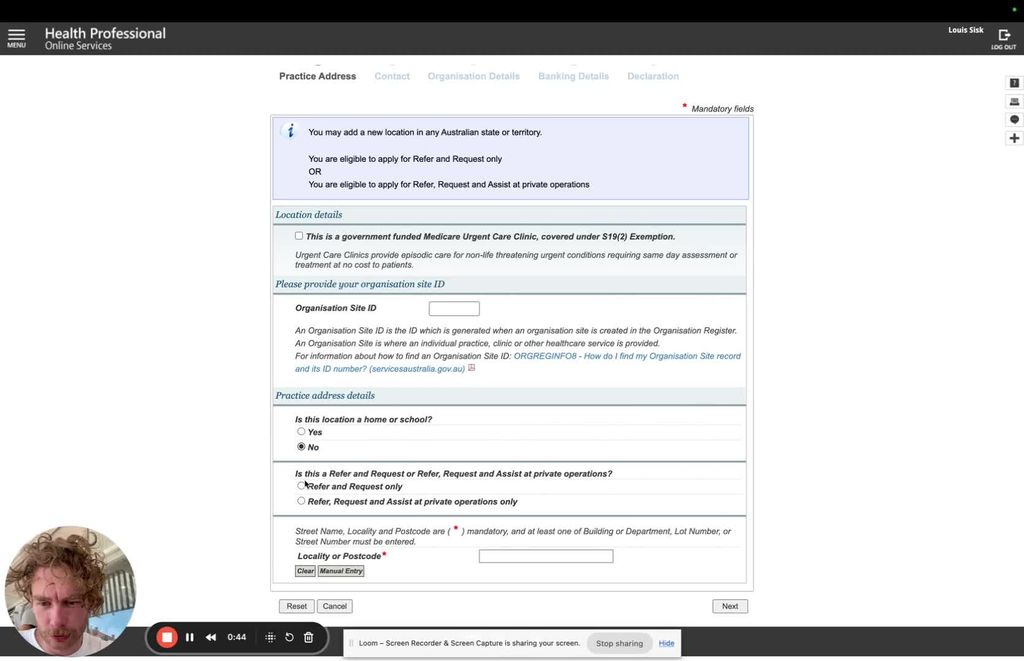
Entering the hospital postcode - Example shown for Inverell Hospital (2360)
- Enter the postcode for the practice location. For Doccy:
Step 5: Enter the practice address
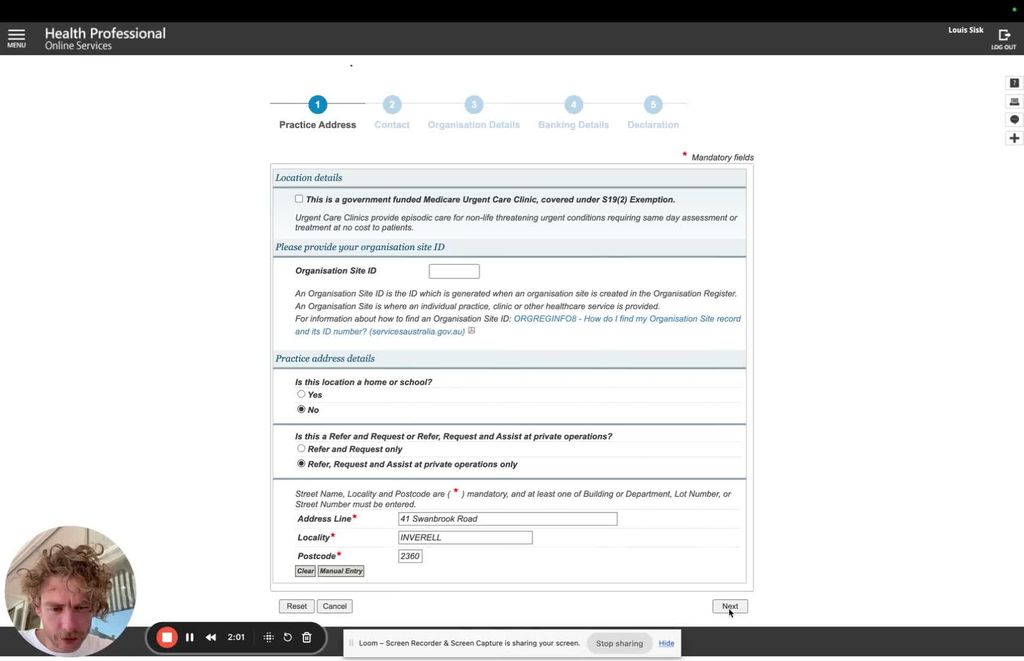
Entering the hospital's street address and location details
- Enter the practice street address. For Doccy:
Practice address
Copy each value into the matching HPOS field.
- Click 'Next'.
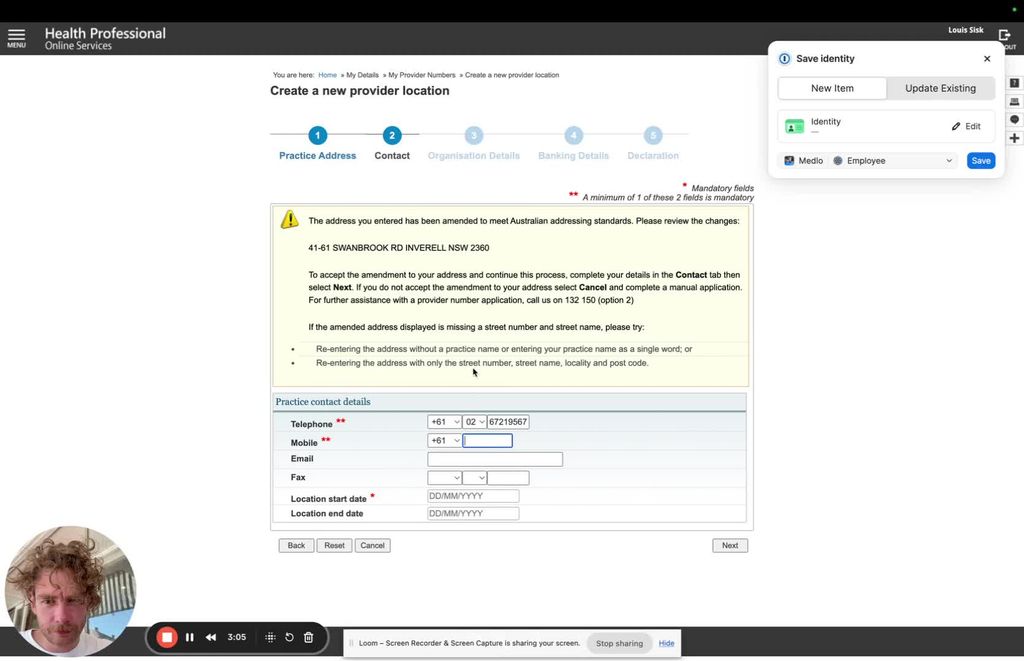
Step 6: Input contact information
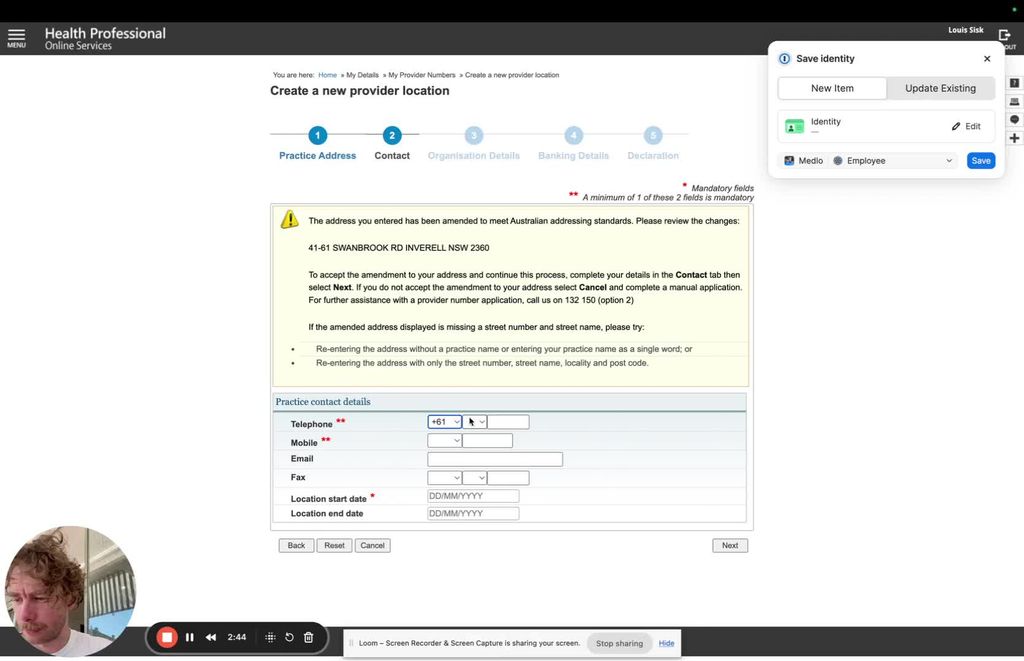
Adding the practice contact telephone number
- Mobile number is optional.
Step 7: Fill in Additional Information
Specifying deployment date and type for the provider number
- Enter today's date.
- Specify the deployment type.
Step 8: Add the contracting organisation
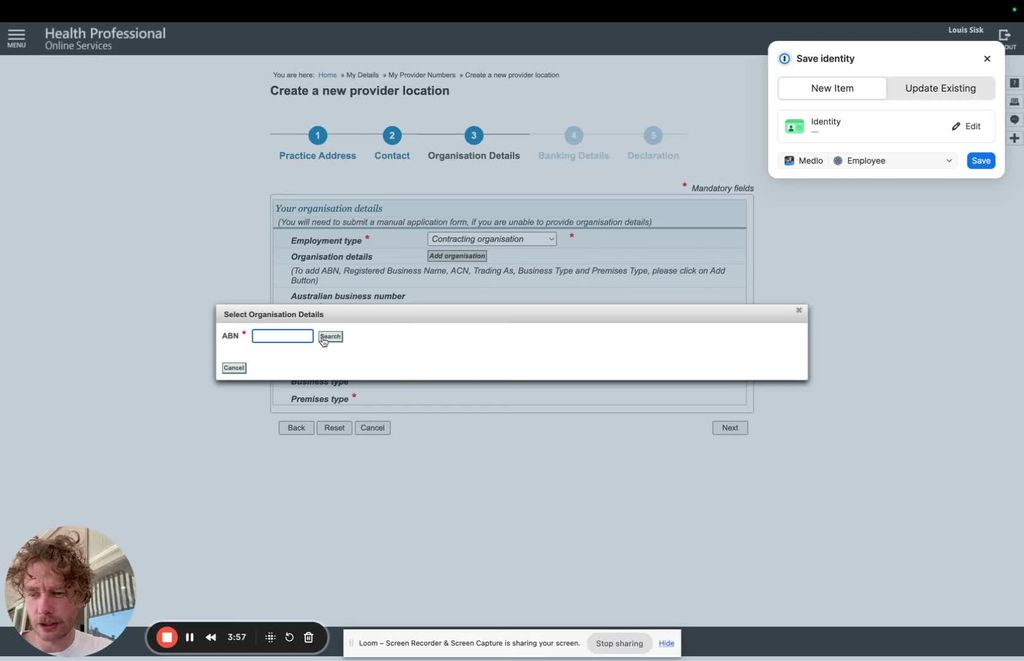
- Click 'Add Organisation'.
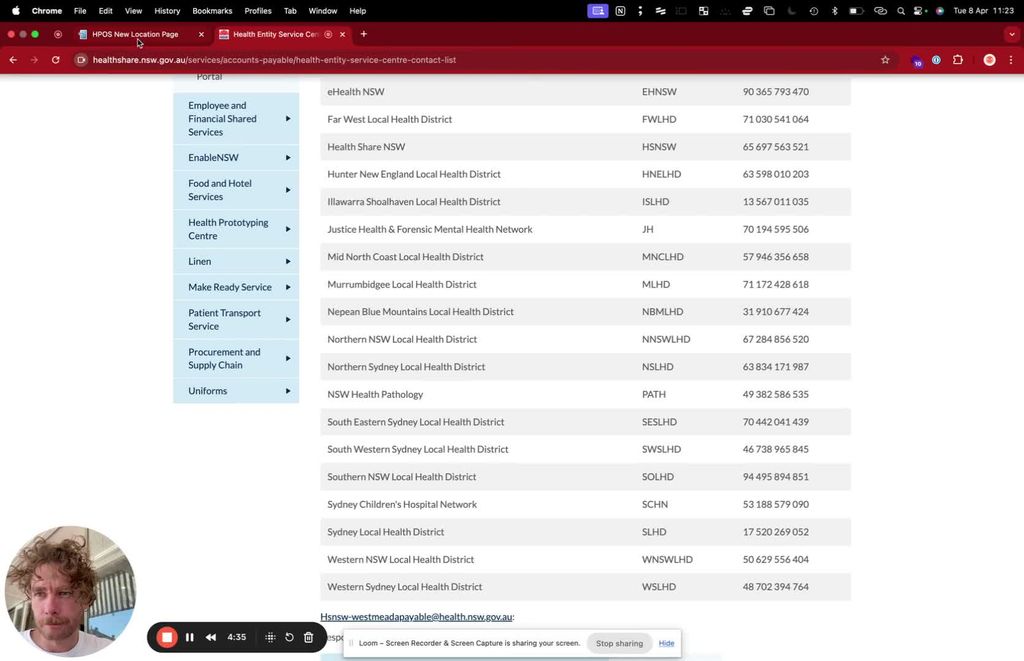
- Search by ABN. For Doccy:
- Confirm the organisation details are for Doccy Pty Ltd:
- Confirm the Collingwood address above matches the organisation record.
- If PRODA cannot find the organisation, verify the ABN through the Australian Business Register.
Step 9: Ensure No Spaces in Entries
Verifying that all entries are properly formatted without extra spaces
- Make sure there are no spaces in the entries.
Step 10: Submit Location
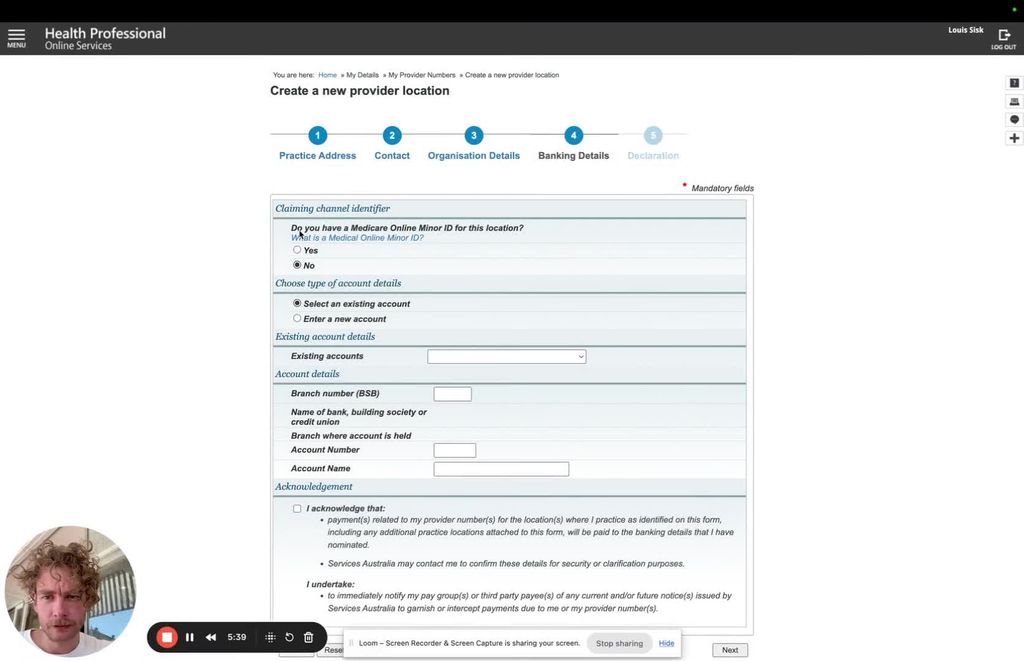
Adding bank details for potential surgical assistance payments
- Add the bank details required for the provider location, if prompted.
- Review all entered details.
- Click 'Submit Location'.
Step 11: Confirmation of New Medicare Number
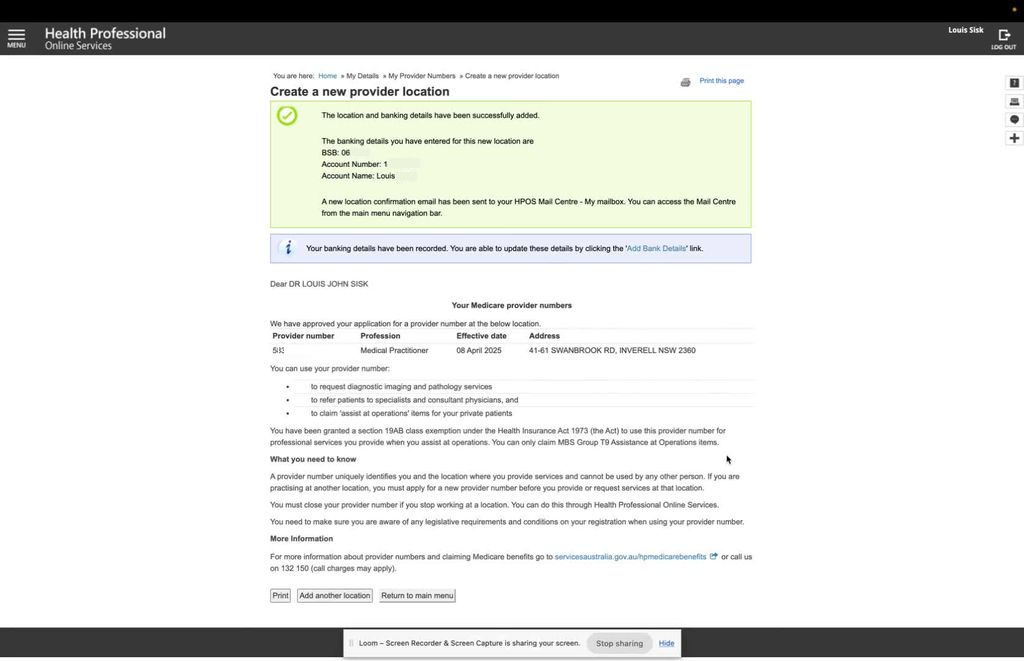
Success! Your new Medicare provider number is ready for use
- Check your HPOS mailbox for confirmation of the outcome.
- Processing time depends on the application and whether Services Australia needs supporting documents. New additional provider numbers should not be used for claims until two business days after issue.
Summary
The online application process is straightforward. The key steps involve:
- Creating a PRODA account
- Completing the Medicare provider number application
- Adding your practice location details
- Submitting your bank details
- Checking your HPOS mailbox for the outcome
Provider numbers are connected to practice locations, so confirm the required details before each application. If Services Australia requests supporting documents, the application may take longer to finalise.
For current eligibility and processing requirements, read Services Australia's guidance on additional provider numbers. For more information about how provider numbers differ from prescriber numbers, read Medlo's guide to Medicare provider and prescriber numbers.